
All My Pictures in iPhoto Disappeared! How to Safely Get Them Back

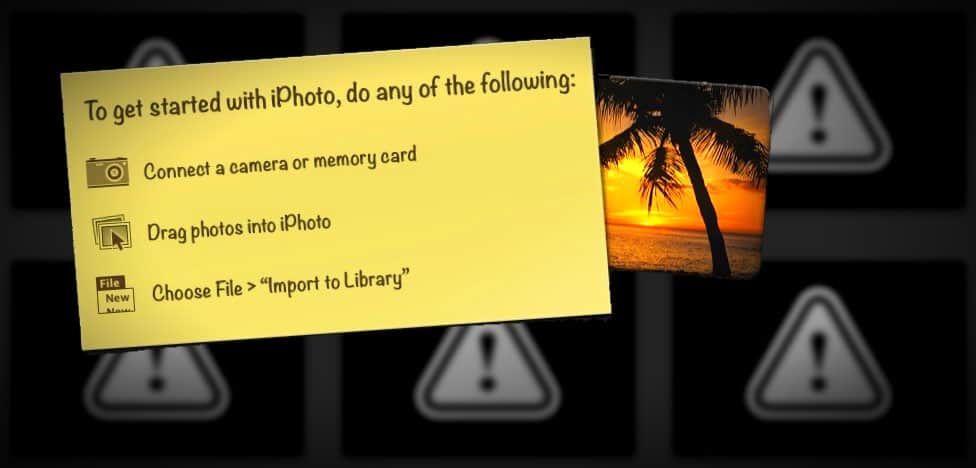
iPhoto is so good at protecting your precious photos that in those very rare times when something actually does go wrong, it's hard not to just freak out and think you really have lost all of your photos!
Luckily, in situations like this, you are able to recall some clues that could make you realize your photos are actually still on your computer. It's just that you can't figure out how to get them to show up again in iPhoto.
This is exactly what happened to Abdullah, who wrote me about his iPhoto collection:
Dear Curtis Bisel,
I have problem with iphoto.
I am using iphoto to store my pictures. One week ago the message comes up from iphoto and said something about I have to choose one of three choices. Unfortunately I did not recognized all the choices. I pressed one of them, and all my pictures disappear from iphoto, and the iphoto created new library.
Actually, I have tried to access to my old pictures but I could not. Somehow, I went to iphoto file than contents than thumbnails than the folders in years like folder name 2011, 2012, 2013, and each folder has one or two pictures, which is I have found all my old pictures there.
Now, I am very wary about my old pictures and I am looking to any help and way to restore them.
Thank you in advance.
Best Regards
Abdullah
Doing the Detective Work
Abdullah did a wonderful job of handling this stressful situation.
In a time like this, it's very important that you try to stay calm and visualize all of the steps you just went through that took your computer from working perfectly to whatever state it's in now.
All of these fairly detailed steps provided me with enough information that after reading his question, I was about 95% sure I knew what had happened.
Clue #1 — New Library Created
Abdullah mentioned he recalled that a message popped up in iPhoto and asked him to pick one of three choices. And he believes he chose the wrong one.
Apple keeps it simple, so there really aren't that many windows that pop up in iPhoto. So that really narrows down what window he must have seen.
Additionally, he said some magic words that made me hear “bingo!” inside of my head — “iPhoto created a new library.”
Let me take a second to point out that both iPhoto and Aperture work by accessing what Apple calls “photo library” files.
If it makes it easier to visualize, think of them like a big hall closet where you can safely and neatly store boxes (Events) full of photographs. The only thing is, in their current versions, both applications can only access one “closet” at a time. If you are looking inside of one “closet,” you can't look at another at the same time.

Clue #2 — Photo Library Contents Intact
Abdullah also told me that he was able to poke around in the “package contents” of the iPhoto “photo library” file. And after some time, he was able to find all of his photos inside.
Excellent! That's relieves most of the tension from the situation because we now know:
- His iPhoto photo library file wasn't deleted or overwritten.
- His master photos weren't deleted or overwritten.
What Are the iPhoto Library Package Contents?
In case you are a bit confused by what Abdullah was talking about when he said he was still able to see all of his old photos in folders labeled by the years, let me briefly give you an idea.
iPhoto, by default, stores your master photo files deep within the “photo library” file. (Really it's like a folder).
Have you heard how people with messy desks say it may look messy, but they could easily find anything on it if they wanted had to?
iPhoto feels the same way about its library file. It may look messy and confusing to you inside of there, but it's very efficient for the software.
And if you were to step inside and delete — or even simply move something out of its original place, iPhoto may no longer be able to find anything — or work at all!
It's delicate. It would be like setting a hat full of hamsters loose under a house of cards.
You laugh, but it's true!
So, I am just giving you a friendly warning to be extremely careful if you dare go in there. What I mean is, if you don’t know what you are doing in there, it’s like not being a mechanic and taking a part out of an automobile engine. You will have to know how and where to put that part back, or you may have serious problems — like your engine won't start again!
Apple puts a kind of “child-proof” like step in between you and the contents of your library file so that the majority of their users won't accidentally go poking around in there.
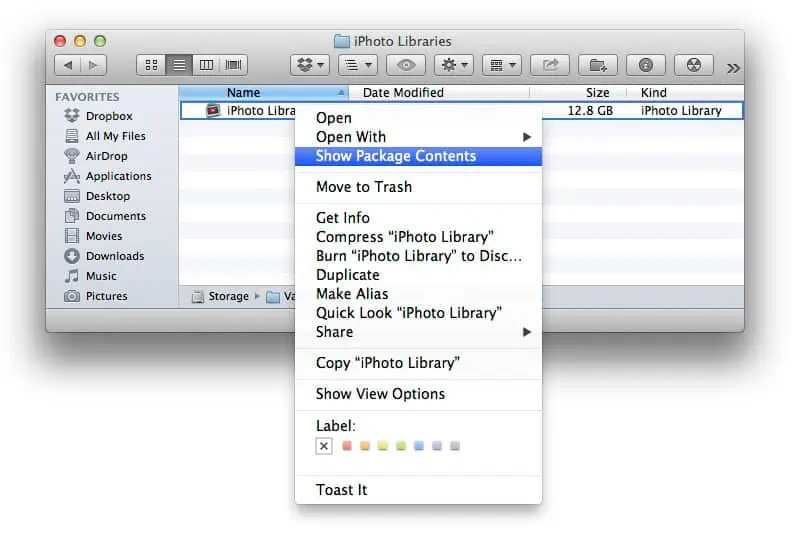

PLEASE KNOW: I am not suggesting the solution for 99% of you is to manually go into your iPhoto library file, and into the contents folders, and manually extract your photos — should you find them. That would be an absolute last resort option for 1% of you that cannot find any other way to get your library file loading correctly on its own again. And that is your goal, to get your original library file working again without having to start over again with your found images by re-importing.
If you re-import them back into iPhoto, you will be starting over from the beginning with each one, and you most likely will lose ALL of your editing done to each one — captions, titles, color corrections, event organization etc.
This step of carefully investigating the package “contents” is just meant to prove to you your photos could still exist in your library file.
For Abdullah, these clues that we just uncovered tells us that iPhoto apparently didn't accidentally delete any photos. It's just no longer showing his photos.
Which means our next question should be what could have happened that would cause this?
Here's What Went Wrong in iPhoto
Whether he meant to or not, I was 95% sure Abdullah was holding down the “option” key on his keyboard when he clicked and loaded up the iPhoto application one day, or he clicked on “Switch to Library” under the “File” menu at the top of the application.
When you do this, a “photo library” chooser window pops up and asks you to select one of three options. Abdullah said he didn't recognize any of the choices, and in his case, he inadvertently pressed the wrong one.

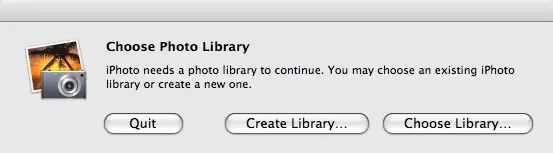
For the record, the correct button would have been the round red “x” button at the top left corner of the first window or the “Quit” button from the second. This would have safely returned him back to the desktop, closing out the window, without any additional action being executed.
Instead, I believe what happened was he chose the button “Create New” / “Create Library.” iPhoto then constructed a whole new photo library (“closet”) for him to start storing a new collection of photographs in.
No harm done, though! There's certainly nothing wrong with creating a new library — even if you don't plan on using it.
It's just scary if you don't know what you just did. Abdullah probably thought all of his photos in his “closet” were thrown out to the virtual curb for the garbage person to pick up because all he saw was an empty photo library!
Instead, iPhoto had just switched from his old photo library full or photos over to the new one that starts off completely empty until you import your first set of photos.

The Solution: How to Safely Fix All This
The way to fix this is really quite simple. It's just a matter of telling iPhoto that you would like to switch back to your original photo library file.
So, you basically want to redo the same step that got you in this situation in the first place. And you can do this in one of two ways.
Switch to Library
If you are using iPhoto v.9 or later, with iPhoto loaded and active, go up and click on “File” and then click on “Switch to Library” from the list that comes down.

[option] Launch iPhoto
If you are using an older version of iPhoto, or iPhoto isn't already loaded, you can achieve the same results by pressing and holding down the “option” key while clicking and launching the iPhoto application.
After either of these methods, the “Library Chooser” window will pop up.
The software now asks you, “Which photo library do you want iPhoto to use?”
Click on your original iPhoto photo library from the list of libraries that have already been created, and then click on the “Choose” button below.
That's it!
iPhoto will briefly close and then relaunch with your original library file.
Additionally, it will now return as being the “default” iPhoto photo library. So with subsequent times loading iPhoto, your original library will continue to load.
If you would like to delete your new, empty and unneeded photo library, you are now free to.
Problems?
If more than one library has the same name, the way to tell the difference between them is to click on each one, and note the library name and path where the file is stored that shows up below the list.
The library marked “(default)” is the library file that will load when you launch iPhoto the next time. So, if you have 2 libraries in the list called “iPhoto Library,” and the wrong one keeps loading, then it's probably safe to say the one that isn't marked “(default)” is more than likely your original library.
If your original library isn't in the list, click the “Other Library” button at the bottom and go through the Finder application paths and look through your hard drive(s) and folders until you find your old library file.
Or, if you are on an older version of iPhoto that doesn't show a list in the window, you will need to click on the “Choose Library” button and locate your original photo library file.
I'm not always right — my wife will attest to that. But, in this case, I'm happy to share this message I later received from Abdullah:
Dear Curtis,
I am really appreciated your help and your time to responding to me.
Thank you so much for your help. You cannot imagine how I am a happy now to see my old pictures again.
Cheers
Abdullah
If, after applying these techniques I used to help Abdullah, you still have problems restoring your iPhoto library, I've created a couple of resource pages with additional steps I recommend you try. Check them out through the buttons in the box below.
Did the solution above solve your specific problem with iPhoto? Are you still having a problem?
Your Problem:
Is iPhoto Not Opening Up Your Original Photo Library File With All of Your Photos? Are 100% of Your Images Still Missing?
If this is possibly your issue, check out my article: How to Locate Your Missing Original iPhoto Library File On Your Computer
Your Problem:
Are you sure all or some of your photos are saved inside your iPhoto library file, but just not showing up when you launch the iPhoto application?
If this is possibly your issue, check out my article: How to Repair and Rebuild iPhoto Photo Library File Database
Hi Mr Curtis,
My first language is french, so excuse me in advance for my english 😉
I just realised yesterday, while searching old photos for a birthday of a friend, that plenty of my old photos (from 2019 and 2020, and probably before and after…) were not anymore on my iPhone… and I have no idea when they disapeared…
I have a IPhone X, and I suscribe to Google LLC to have 100 GB because I have a great quantity of photos (more than 20 000). I bought a MacBook Pro last year, and the photos are shared on ICloud.
While reading your articles, I realised that since I was using economy energy mode, in my settings on ICloud the choice « optimize stockage of IPhone » was automaticaly chosen… maybe it is a cause of my problem? But when I stopped the economy mode, and clicked to « keep and download the originals », and turn off and on my IPhone, the old photos didn’t return…
Do you think there is a way to find back my old photos, that where on my IPhone, and not on a computer?
I am keeping my fingers crossed, while waiting for your answer… 🤞🤞
Dominique
Hi Curtis,
I read all the articles and comments and need help asap. I recently upgraded my iPhone and iMac, and had moved a huge amount of pics and videos to my iPhotos library. Noticing that the drive was choked, I copied the iPhoto app and put it in an external hard drive. I tested it, and was able to easily access the content. I checked last night, and it was all gone. Three years worth of pictures and videos. I downloaded a data mining app, and was able to locate all the pics in a separate iPhotos library file..great! I have not found any videos..and I am devastated. The videos are my wedding, my grandma and my dog. My grandma and dog have since passed away, so the videos were precious of the last time I had with them. The issue I am having is I am not sure where the videos went or if they got deleted inadvertently or overwritten or possibly computer cleared them. iPhoto is not showing me any deleted photo options. I even hunted under hidden albums. I did notice that some files seem to be corrupt and some photos I found are not the right date! I am not quite sure what happened or what I did, but to say the videos is a great loss, is true, it feels like I lost my loved ones all over again. Please help. I am losing sleep. Feels like I lost my heart.
I’m really sorry to hear you are going through this. 🙁 But, it’s still possible it’s just a matter of figuring out where the data you are missing is and discovering the way to “harvest” it.
Your first few sentences of your message leave out a lot of details that one in my position need to understand what happened from the time you last saw all of your images and videos, to now when you can’t. For example, when you say you upgraded your iPhone and iMac, did you go from a Mac operating system that was really old — that only had Apple iPhotos — to a recent version that now doesn’t have iPhotos anymore but instead has their newer Apple Photos application? If so, there is a process where your photos and videos may have been transitioned to be used in Apple Photos.
You said when your “drive was choked” you copied the “iPhoto app” to an external hard drive. The iPhoto application is just the application itself that is stored in the Applications folder. All of your photos and videos are stored in a different place — in a library file that is usually stored in your user folder and then in the Pictures folder. Did you copy a library file or more to your external drive?
So, are you saying your iMac no longer boots up with the original drive that was running when iPhoto and your collection were working just fine? When you said you “checked last night, and it was all gone,” did you mean on your iMac, or on this external drive?
Likely your photos and videos are in a library file that can be loaded by some application that is written to access them… (and there are third party apps that also can access them) but I don’t have an understanding of whether the best source is still your iMac computer drive, or if you managed to copy all of the library file(s) from your iMac to your external drive. I would need more information.
The data mining app could be the solution, under certain circumstances here. But, maybe there is a way to access the library files without it. Again, I don’t have a full grasp of all of the details here.
thank you so much for this! I appreciate it so much you fixed my life!
Oh, Emily, you are SO welcome! 🙂 So happy to hear you found success!
I thought I had lost a lot of images but had done nothing other than restart my laptop. Thank you so much, it was reassuring to read that they were almost certainly not lost, and as soon as I searched for it, I found a second library. What a relief. Thank you, thank you.
Wahoo!!!! That’s incredible to hear, Miyuki! I’m very pleased to read this!
My iphoto library somehow migrated to my photo app and has made my photo app lose all its previous content. How can I get back my photo library and get iphoto out of the photo app???
I can’t say for sure exactly what happened in your case, since I’m missing a lot of information from your story, but in general, whenever a Mac user upgrades their operating system from a version of 10.10.2 or below, to version 10.10.3 or later, Apple’s new Photos application is installed to take over the job of their longtime iPhoto application.
When you first open Photos, it imports everything from your iPhoto library (though in a way that doesn’t occupy more disk space), and creates a new Photos library. From that point onward, anything you do in the new Apple Photos application won’t appear in the old iPhoto application, and anything you do in iPhoto won’t appear in Photos. It’s a one-time copy only.
So, it’s wise to choose one application over the other and stick with it. (And since iPhoto is no longer being updated/supported, it’s a far better choice and begin to start distancing yourself from iPhoto as quickly as you can)
The iPhoto application should not have been automatically removed from your computer. It should still be in your Applications folder (If it’s not, you can still get it back).
You can open your library file in iPhoto if you would like, or you can open it in the new Apple Photos application. They are interchangeable. If you launch iPhoto and your old library file doesn’t open, you need to manually tell iPhoto where it is and to launch with it (again). To open it in iPhoto, hold down the “option” key while clicking on the iPhoto application icon to launch it. This should bring up a menu to allow you to choose your library file.
However, if it wasn’t already updated to version 9.6.1, it will have a big “DO NOT” icon superimposed on the launch icon and you won’t be able to open it. This makes it seem as though you can never load it, but you can, you just will need to get it back by downloading the latest version of it before Apple stopped allowing you to do automatic updates through their system.
Here are the steps:
Hope this helps you Sue! :coffee:
Useful Information sharing but I had choose an another option using Stellar Photo Recovery software which can help to retrieve lost photos on my MacOS after upgrade Catalina. Thanks!
This is good but only if you can still find the Library package file! Mine has vanished following a regular Time Machine back up and a long overdue OS upgrade (Snow Leopard to Lion) on my 13 year old MacBook (yes I know it’s obsolete but it does what I need it to, it works fine most of the time, and I can’t afford a new one!)
The Library package is not in the Trash, or on Time Machine. I have an older backup on another external drive but if I use that I will have still lost 2 years of photos. I’ve tried using apps like Find Every File, but zilch. There’s a bit of stuff online about bugs in TM causing the iPhoto library to disappear if you TM backup with iPhoto still running. I really hope this hasn’t happened to me… Any advice is most welcome. Cheers.
I’m really sorry to hear, Col. Let me see if I can help you here though.
You’re right, the article above isn’t helpful in all situations. That’s why I created two additional articles for people in an iPhoto (Photos) predicament that are listed at the very bottom of the article.
Have you checked out the first of these two articles, with the button that reads, “How to Locate Your Missing Original iPhoto Library File on Your Computer.” This will give you some other really useful tactics you could take other than just in the Trash or on Time Machine.
This article is great. I was able to get my photos back!
So happy to hear, Henry! Excellent!!!
Hi Curtis – I am an avid amateur photographer, and I took 325 photos of my son’s baseball game yesterday. I imported them to iPhoto and was in the middle of editing them when something glitched. I had to force quit iPhoto, but I never imagined all my photos would be gone. I assumed I might lose some edits, but not the original imported images. My original photo library is fine, it’s just the 325 photos that I imported are not there. The folder that I created still shows, but it is empty. “Last import” folder contains images I imported months ago. Do you have any advice for finding them? Of course I deleted them off the memory card in my camera when I imported them, so if they are gone, they are gone for good
So sorry to hear Grace. I really hope you can get them back. Hmm, it’s possible if you were working with the image in iPhoto before the glitch, it’s possible something went wrong while or before it finished saving the database the last time. Which would mean, the masters are store inside of the library file, but iPhoto’s database has just “forgotten” that it is taking care of them.
If I were you I would follow my instructions on how to repair your database (and then rebuild if that doesn’t work). There’s a button at the bottom of this post that tells you the process, starting with creating a backup so you know you can at least return to the point where you are now in the slim chance that something goes wrong in attempts to repair or rebuild the database.