
The Best Way to Add a Description (Caption) to Your Scanned Photos


Ah, there's nothing quite like reading a great caption to go along with a special photograph. Sometimes they're so effective, they just seal the emotional experience of being there — as if you were right there when that photograph was taken — even if you weren't!
I think it's so important that you record these “priceless” descriptions as soon as you can. Some of us might think we can remember all of the details. But face it, you probably won't be able to. They're fleeting. And even if you could, you and your memory aren't going to be on this earth forever.
With prints, it was easy to record this information by writing the stories by hand on the back. But, now that we are wishing to move our prints, slides and negatives to a digital form in our computer, how do we easily add this information so that it can live with each master image file?
In part 2 of my series on how to name your scanned photos, I suggested that the image's filename isn't the best place to save a lengthy description of your photograph. Strong and precise keywords for sorting and identification work best there.

So then where is the right place to go hog wild and write all about your photographs?
 Captioning Your Photos
The best place to add this information is actually a simple text field (box) that you type into and is then stored inside of your master image files. It used to be that only professional photographers and journalists had easy access to this “IPTC metadata.” But now, with even the simplest photo software becoming powerful, all of us can now benefit from this technique.
There are lots of lightweight graphics programs out there that can help you with this. But, since I am always advocating that all of us archiving our photo collections store and edit our scanned photos in “non-destructive” image managers, I'm going to keep things simple and show you how to do it in each of the four managers I think are the best.
If you currently aren't using one of these programs, you might want to take a look at my article called “Use 1 of These 4 Photo Managers If You Care About Your Photo Collection” and see if you would be interested in trying one of them out for your own photo collection.
But Will All of My Captions Be Trapped in My Image Manager?
Absolutely not. Your captions will move with your photos where ever you want to take them. However, each image manager handles how and when the caption information is saved to the master image file differently. In the “worst” case scenario, your caption is stored in your image manager's project database for safe keeping. And then when you “export” one or more images to use outside of the program, the exported image will then have this caption information saved inside of it.
If you were to then open up this new file in another program that is able to access IPTC metadata, your captions will be displayed! Cool!
Whichever program you use, I hope you caption your digital photos. Sure, it's a lot more work. But if you don't do it, really — who's going to be the voice of all of these memories generations from now?
Picasa – How to Add Captions to Your Photos:

|
|
1 | Double click on one of your photos from the “thumbnail” Library view which will take you to the Edit view screen. |
|
|
2 | Look underneath your photo on this new screen. Single click on that gray bar with “Make a caption!” written in the middle. |
|
|
3 | Type in your entire caption.You can use your cursor keys as well as clicking through your text to jump around. When you're finished, single click anywhere on the screen outside of this field or simply hit enter. |


Now what's cool is you can set up Picasa to display your captions underneath each thumbnail. Go back to the Library view screen by clicking on the Back to Library button on the top left. If you don't see the caption you just entered below its photo, go up to View in the menu bar and then at the bottom highlight Thumbnail Caption and then click on Caption from the list. You should now see your caption!


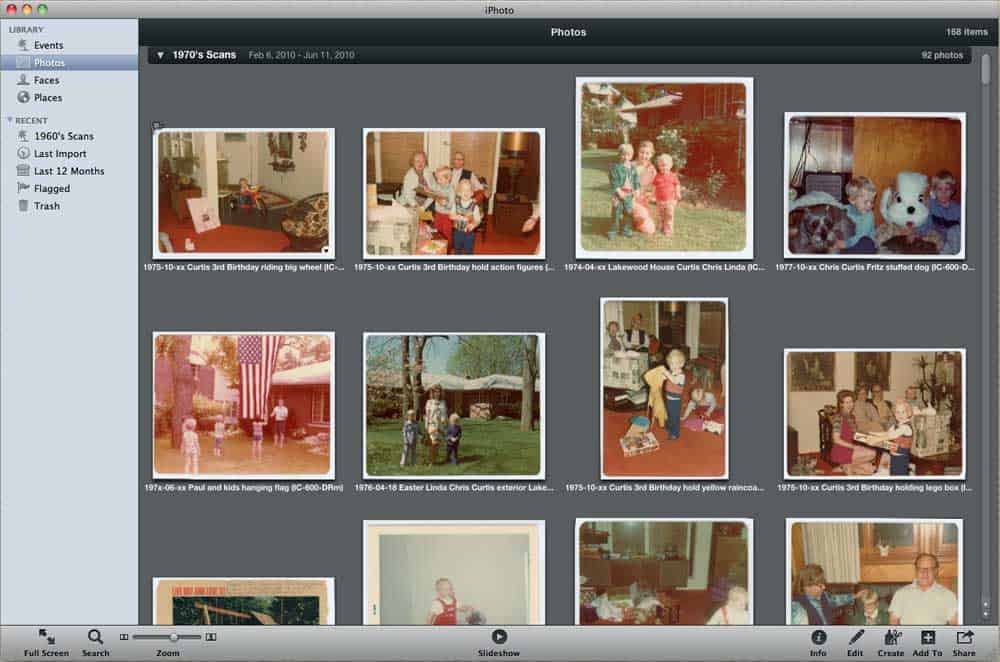
iPhoto – How to Add Captions to Your Photos:

|
|
1 | Select a photo in the “thumbnail” Photos view to highlight it or double click on a thumbnail to take it into the Edit view. |
|
|
2 | If the Info panel on the right isn't already open, click on the Info button (or command-i) near the right hand side of the bottom toolbar. A vertical panel with information about your photo will open up. |
|
|
3 | Near the top you will see a line of text that reads, “Add a description…” Click on this text and it will open a box for you to type. |
|
|
4 | Type in your entire caption. You can use your cursor keys as well as clicking through your text to jump around. Hitting enter will not finish your entry, but will move you to the next line. When you're finished, just move your cursor away from the box. |


Some of the themes while showing your photos in a Slideshow (really fun if you haven't already tried it!) can display this caption information on top of the photo. Make sure you go into the settings (gear icon) while in a slideshow and put a check next to Show Captions. Then choose either Descriptions or Titles and Descriptions from the pulldown.

Lightroom – How to Add Captions to Your Photos:

|
|
1 | Select a photo in the “thumbnail” Library Module grid view to highlight it or double click on a photo to take it into the Loupe view (“e” key). |
|
|
2 | In the panel on the right, you will see a Metadata option with a triangle icon that opens and closes its options. |
|
|
3 | Open it up (if it isn't already) and select Large Caption from the upper-left most pulldown menu item. Several of these default options will display the box to enter in captions, but this by far gives you the largest field to type a long caption. |
|
|
4 | Click inside the box and type in your entire caption. You can use your cursor keys as well as clicking through your text to jump around. Hitting enter will not finish your entry, but will move you to the next line. When you're finished, single click anywhere on the screen outside of this field. |


Lightroom provides an almost endless way of displaying metadata underneath thumbnails in the Grid view and at the top of photos in the Loupe view. From the View option in the top menu bar, select View Options from the list. Use this Library View Options settings window to select any and all metadata you would like to display. It's ridiculous how much control you have.

Aperture – How to Add Captions to Your Photos:

|
|
1 | Select a photo in the “thumbnail” Browser view to highlight it or double click on a photo to take it into the Viewer mode. |
|
|
2 | Click on the Metadata tab inside the Inspector panel on the left. If you don't see this panel, click on the blue Inspector button at the top of the program or hit the “i” key. |
|
|
3 | From the pulldown near the top, select Large Caption. A few of these default options will display the box to enter captions, but this by far gives you the most room to type a lengthy description. |
|
|
4 | Click inside the box and type in your entire caption. You can use your cursor keys as well as clicking through your text to jump around. Hitting enter will not finish your entry, but will move you to the next line. When you're finished, single click anywhere on the screen outside of this field. |



Aperture also provides an almost endless way of displaying metadata underneath thumbnails in the Browser view and under photos in the Viewer mode. From the View option in the top menu bar, select Metadata Display from the list. Use the Customize settings window to select any and all metadata you would like to display. Just like Lightroom, it's utterly ridiculous how much control you have.


So did I forget anything? Does this seem easy enough to make you want to record the stories about your photos? I would love to know your thoughts after reading about this. Don't be shy — it will only take a minute to write me a comment below. I would appreciate it.
I hope this will help you and your collection! Cheers everyone!
I like the idea of adding a caption to a photo. How do you also add GPS coordinates (which my camera records automatically when set) to the caption???? Thank you!
I’m getting ready to scan my dad’s WWII photos with captions so that all grandkids can have a copy. What is the best way for me to scan old photos?
Buy a print scanner or send the photos to a reputable scanning service, a little expensive but if you only have a few photos and this isn’t something you’re going to be doing a lot of it’s a good choice. Downside is the pictures have to be send by mail or UPS and sometimes, not very often, things do get lost and you probably won’t ever see the photos again. Do you have any friends that have a scanner, possibly they could help you.
What is the best app for my iPhone 6 to scan a photo and then add a caption?
Picassa is dead. Can’t use Mac stuff on my PC . Your article is worthless.
I’m sorry Susie this article in my collection wasn’t helpful for you. Even though it’s one of my “older” articles, I personally still would hardly classify it as “worthless.”
You’re right, “Picasa” is no longer being developed anymore. But, for their own reasons, there are lots of people still running old Windows operating systems. For example, Windows XP is still being used by people either unwilling to pay to upgrade Windows, or those with a lot of old software that can’t be upgraded — or maybe they don’t want to pay to upgrade their software. Or maybe their hardware is old enough it can’t support a newer operating system. So, I’ve left this article as-is all this time for those who are still using Picasa (even though it can’t be updated further).
However Susie, I also included help for Adobe Lightroom in this article. Lightroom is available on PC’s, so this is still an option to you.
Sorry Susie … Picasa is NOT “dead” — we’re STILL running Picasa on a Windows 10 laptop w/ 17″ screen (fabulous photos!), a MacBook Pro running Mojave (10.14), a MacBook running Snow Leopard (10.6.8) and it works just fine. Does Facial recognition, location mapping, and allows us to edit limited tags. Obviously it is not a full meta-data editor, but it is a fabulous photo editor.
Thanks so much. I have been able to record the comments my mom made on each photo while scanning them because of your post. ! Thanks very much.
GNU/Linux, or as I’ve recently taken to calling it, GNU plus Linux. Linux is not an operating system unto itself, but rather another free component of a fully functioning GNU system made useful by the GNU corelibs, shell utilities and vital system components comprising a full OS as defined by POSIX.
Many computer users run a modified version of the GNU system every day, without realizing it. Through a peculiar turn of events, the version of GNU which is widely used today is often called “”Linux””, and many of its users are not aware that it is basically the GNU system, developed by the GNU Project.
There really is a Linux, and these people are using it, but it is just a part of the system they use. Linux is the kernel: the program in the system that allocates the machine’s resources to the other programs that you run. The kernel is an essential part of an operating system, but useless by itself; it can only function in the context of a complete operating system. Linux is normally used in combination with the GNU operating system: the whole system is basically GNU with Linux added, or GNU/Linux. All the so-called “”Linux”” distributions are really distributions of GNU/Linux
Regards: Eve Hunt
FastStone Image Viewer for Windows allows you to add text to the JPG comments section of your JPG pictures. You can then run their slideshow or create a .exe slideshow file, and have the JPG comment displayed ON the picture in your font size, color, background color, and location.
I just starting using Lightroom and am learning the ropes. I’ve captioned and titled hundreds of pictures in LR that I would like to send out for online prints that I can share with my less connected relations. Will any of the online services use my metadata to print titles and captions on the back of my prints? It seems like an obvious feature for these businesses to support, but so far my search has turned up squat.
From what I read, Lightroom’s “Book Module” lets you create a Photo Book with captions either taken from individual photo metadata, or entered manually. Lightroom then allows you to send the results to a printshop, export the whole collection as a .PDF, or (critically) to convert the individual photos with captions to new .JPG files that show the caption under the actual image. The last option is the one I’m interested in. Has anyone used this function in Lightroom? Are there any simpler/cheaper alternatives for doing the same thing? See the following for a description of Lightroom’s Book Module:
https://helpx.adobe.com/lightroom/help/create-photo-book.html
The article really learns me a lot. Author introduces new tools and techniques that are very helpful in future.